
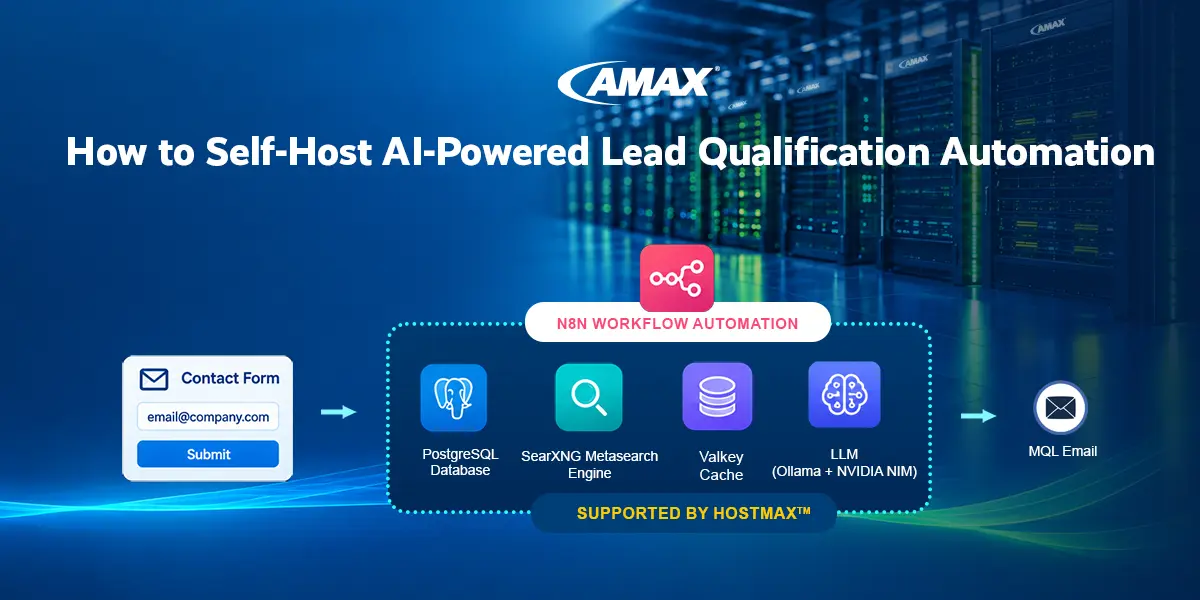
How to Self-Host AI-Powered Lead Qualification Automation
A story of Docker networking, custom workflows, HTTPS, and cross‑server LLM integration – and a humbling “wrong server” moment.
AMAX Technical Blog
September 8, 2026
Contents
1. The Vision
We wanted to build a completely self‑hosted, AI‑driven lead qualification pipeline. The idea was simple:
- A contact form submits an email address.
- The system extracts the company name from the website, searches the web to determine if the company is public or private, and then either notifies an internal salesperson or drafts a personalized outreach email using a local LLM.
All of this needed to run on our own infrastructure by HostMax™.
2. Laying the Foundation: Docker Compose & Custom Networks
We started with a single docker-compose.yml on the CPU server that defined a custom bridge network (ai_automation) for all services.
- n8n – the workflow automation engine
- PostgreSQL – persistent database for n8n
- SearXNG – privacy-respecting metasearch engine
- Valkey – Redis-compatible cache for SearXNG rate limiting
All containers joined the same network so they could communicate internally via service names (e.g., searxng-core:8080).
This kept everything isolated from the host network.
Key lessons learned early:
- Explicit container naming and a custom network make inter-container connectivity trivial.
- Healthchecks, especially on PostgreSQL, prevent race conditions during startup.
3. Connecting Ollama & the First Integration
Ollama was installed directly on the host CPU server (not inside Docker) to keep models portable and avoid GPU component juggling. To let the n8n container reach it, we added extra_hosts:
extra_hosts:
  - "host.docker.internal:host-gateway"
This mapped the special hostname host.docker.internal to the Docker bridge gateway, allowing n8n to call Ollama at http://host.docker.internal:11434. This pattern would become a recurring theme.
4. Configuring SearXNG for Internal API Access
SearXNG’s bot detection and rate limiting initially blocked requests from our internal Docker network. We addressed this by:
- Adding
pass_ipentries for the Docker subnet172.0.0.0/8inlimiter.toml. - Disabling
require_x_forwarded_forsince no reverse proxy was used at that point. - Enabling both
htmlandjsonoutput formats insettings.ymlso n8n could request structured JSON results.
With these tweaks, SearXNG became a reliable internal search API.
5. The Workflow: From Webhook to AI-Generated Email
The n8n workflow was built incrementally. Here’s the essential flow:
- Webhook receives a form submission containing an email address.
- HTTP Request node fetches the company’s homepage by extracting the domain from the email.
- Function node parses the
<meta property="og:title">tag to obtain the company name. - Another Function node constructs a SearXNG query:
"is {company} a public company site:finance.yahoo.com/quote"and URL-encodes it. - HTTP Request calls SearXNG internally.
- Function node inspects the results: if any URL matches
finance.yahoo.com/quote/[ticker], the company is considered public. - IF node branches:
- True branch → sends a quick internal email via Gmail.
- False branch → invokes Ollama (model
phi4:14b) to generate a personalised outreach email. - A Gmail node sends the AI-drafted email to the sales team.
All of this worked beautifully within the CPU server.
6. The Cross-Server LLM Challenge
Next, we wanted to offload LLM inference to the GPU server running NVIDIA NIM containers (Mistral & DeepSeek). This is where we hit a major debugging rabbit hole.
The Problem
The n8n HTTP Request node could reach public domains like yahoo.com, but constantly failed with ENOTFOUND or ECONNREFUSED when pointed at host.docker.internal:8080 or even the GPU server’s IP. Yet wget and curl from the same container worked flawlessly.
We spent hours trying:
- Setting Node.js DNS resolution order (
--dns-result-order=ipv4first) - Forcing IPv4 (
Family: 4) - Disabling stream mode
- Adding explicit DNS servers (
127.0.0.11) - Building a Python proxy daemon
- Tweaking iptables rules
Everything pointed to a Node.js-specific networking quirk…
The “Wrong Server” Revelation
After all that, we discovered the root cause:
n8n and SearXNG had already been moved to a CPU-only server, while the NIM containers remained on the H200 GPU server. We were debugging the wrong server the entire time.
The supposed “inter-container communication” issue was actually a cross-server HTTP call that worked perfectly when using the GPU server’s local IP address. The HTTP Request node had no trouble whatsoever reaching the remote server—it had simply been misconfigured with a hostname that wasn’t reachable from that server.
Lesson learned: Always verify which server you’re on before deep-diving into networking debugging.
7. Secure Access: From HTTP to HTTPS
Once the workflow was running, we wanted to expose n8n securely over HTTPS. Because the server could not use port 80 (blocked by corporate firewall), we used the DNS-01 challenge with acme.sh and Let’s Encrypt. This allowed us to obtain a valid certificate without opening any inbound ports.
Steps
- Switched acme.sh to Let’s Encrypt (the default CA was ZeroSSL, which required email registration).
- Issued a certificate for
sample.comusing the manual DNS mode. - Added the TXT records to our DNS provider.
- Configured Nginx to listen on port
####(the only allowed external port) and terminate SSL using the Let’s Encrypt certificate. - Proxied all requests to n8n’s internal
127.0.0.1:####. - Updated n8n’s environment variables:
N8N_EDITOR_BASE_URL,WEBHOOK_URL, andN8N_HOSTto reflect the newhttps://test.sample.com:####URL.
The “Connection Lost” Bug
After switching to HTTPS, the n8n UI kept showing a “connection lost” error. The logs showed:
Origin header does NOT match the expected origin. (Origin: "https://test.sample.com:####" ...)This is a known regression in n8n ≥1.87 when running behind a reverse proxy on a non-standard port. The fix was to hardcode the Host and Origin headers in the Nginx configuration:
proxy_set_header Host "test.sample.com";
proxy_set_header Origin "https://test.sample.com";
Once those headers were stripped of the port number, everything worked smoothly.
8. Workflow as Code – Export & Documentation
To manage the workflow in a version-controlled, reproducible manner, we exported the final workflow as a JSON file. This allows:
- Storing the workflow in Git.
- Re-importing it into any n8n instance.
- Automating deployments via CLI or CI/CD.
We also created a series of 19 GitHub issues that trace the entire project from environment setup to the final HTTPS integration. Each ticket contains acceptance criteria, implementation notes, and file references—perfect for onboarding new team members or keeping a project log.
🧰 Final Architecture
Browser
  ↓
FW (sample.com:####)
  ↓
Nginx (reverse proxy, SSL termination)
  ↓
n8n (Docker, internal network)
  ├── PostgreSQL (same Docker network)
  ├── SearXNG (same Docker network)
  └── Ollama (on host, via host.docker.internal)
        │
        ↓
n8n HTTP Request node
  ↓
GPU server (sample.com:####)
  ├── Mistral NIM
  └── DeepSeek NIM
💡 Key Takeaways for Self-Hosted n8n Projects
- Custom Docker networks simplify inter-container communication and avoid port conflicts.
- Ollama on the host works well with
host.docker.internal—just make sure it listens on0.0.0.0. - SearXNG requires explicit whitelisting for internal clients and disabling the X-Forwarded-For requirement.
- Node.js DNS caching can lead to inexplicable
ENOTFOUNDerrors; when in doubt, use IP addresses or restart the container after network changes. - Always double-check which server you are on when debugging cross-server connectivity.
- DNS-01 challenges are the cleanest way to obtain SSL certificates when port 80 is unavailable.
- Non-standard HTTPS ports behind a reverse proxy may require hardcoded headers in Nginx to satisfy n8n’s origin checks.
- Export workflows as JSON and store them in Git to enable CI/CD and team collaboration.
The result is a fully automated, self-hosted pipeline that qualifies leads, drafts emails with AI, and serves everything over a secure connection—all built with open-source tools and a bit of perseverance.
We hope this journey inspires you to push the boundaries of what you can automate with n8n. If you hit a wall, remember: sometimes the problem is as simple as being on the wrong server.